
Maintainability is an essential feature of any product. Therefore, Seplos BMS 3.0 can achieve maintenance of the management system through firmware upgrades. This includes improving the functionality of some modules, and enabling the management system to provide more comprehensive management and protection for the battery pack.
Here are six steps to guide you through the firmware update process.
Before Starting the Seplos BMS Firmware Update
This Seplos BMS firmware update procedure applies to compatible Seplos BMS 3.0 and Seplos V3 BMS hardware. Before beginning the BMS firmware upgrade, confirm the exact hardware version, current firmware version, upgrade file, communication cable, RS485 connection, and software requirements.
Do not use a firmware file intended for a different BMS model or hardware revision. An incorrect file or interrupted upgrade may cause communication problems or prevent the BMS from operating normally.
Requirement before BMS firmware upgrading
- Computer system bit 64, supports Win7-Win10 system
- Dedicated RS485 Converter
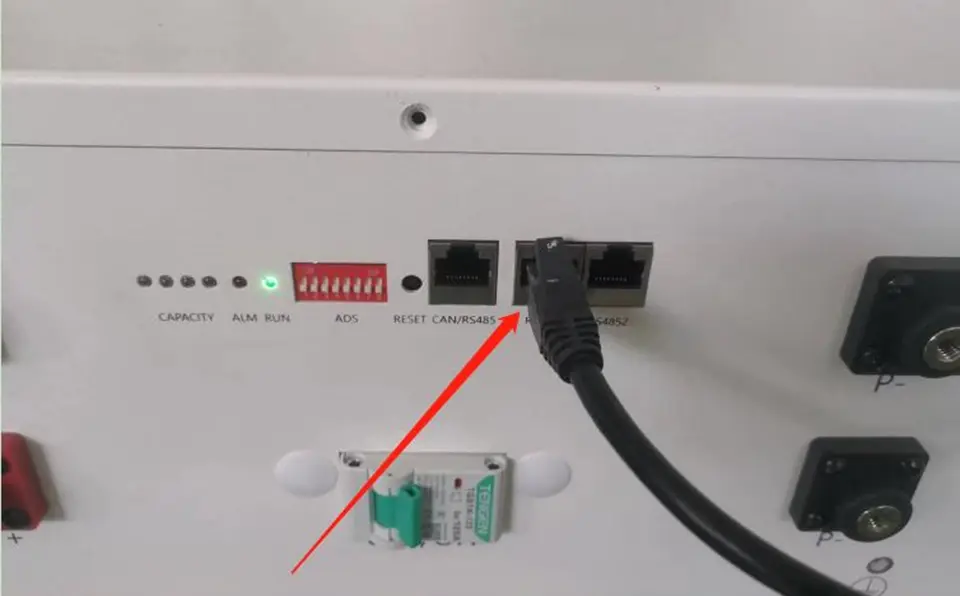
- Need to connect RS485-1 port
Notice: what are the necessary cautions to upgrade the firmware? pay attention to the power-on status of the BMS during the upgrade process, do not shut down the battery, pause, or cancel the update.
First:
The BMS must disconnect from the communication state with the inverter on standby and connect to the RS485 port.
Second:
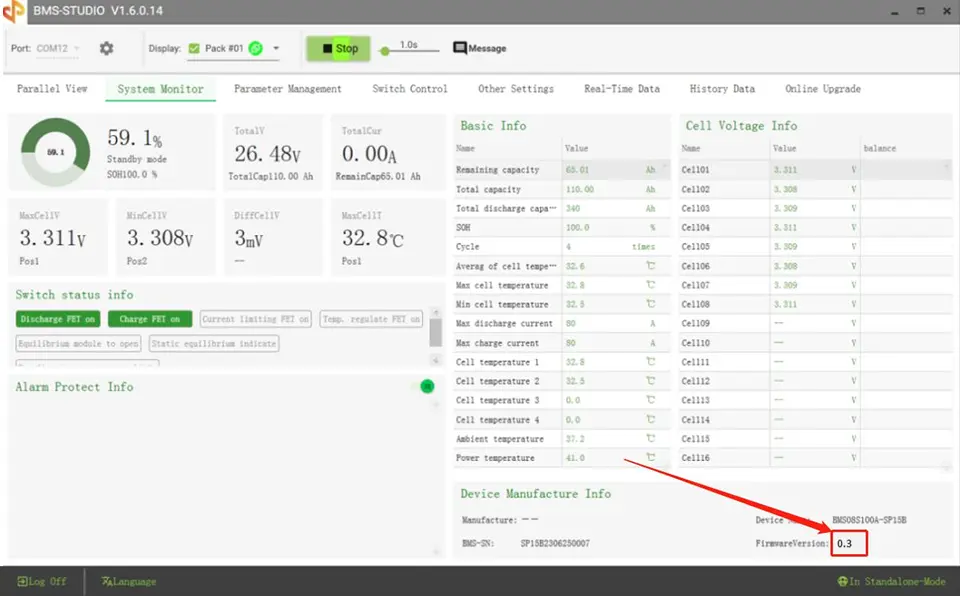
Turn on the upper computer and connect to check the firmware version, you need to choose the right firmware version, otherwise, the root of BMS will be changed after the upgrade.
Third:
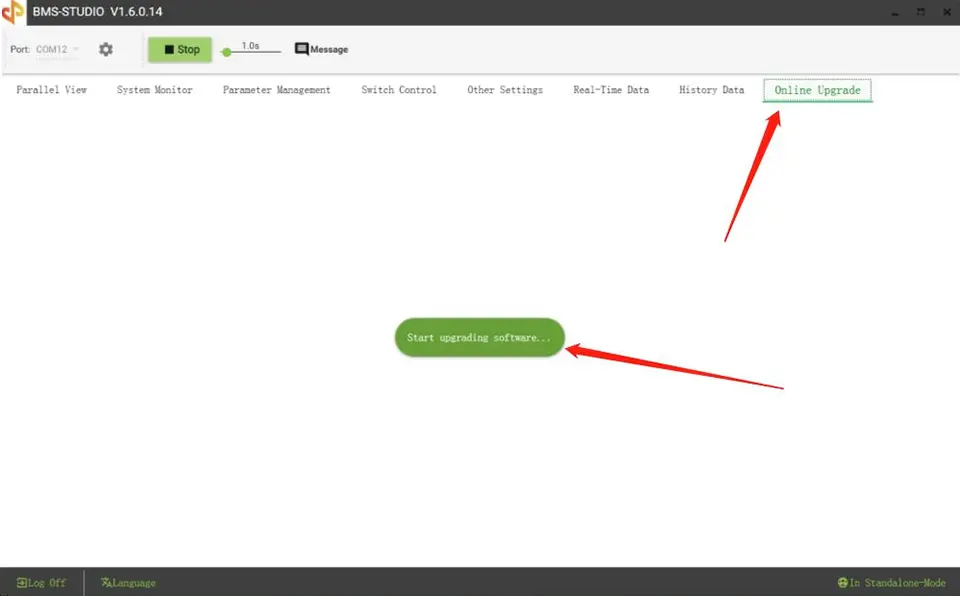
Open the firmware upgrade page, select Firmware Upgrade
Fourth:
Open the upgrade window:
- Select the correct COM port
- Confirm baud rate bit 19200
- Open the serial channel
- Select the upgrade file
- Confirm upgrade
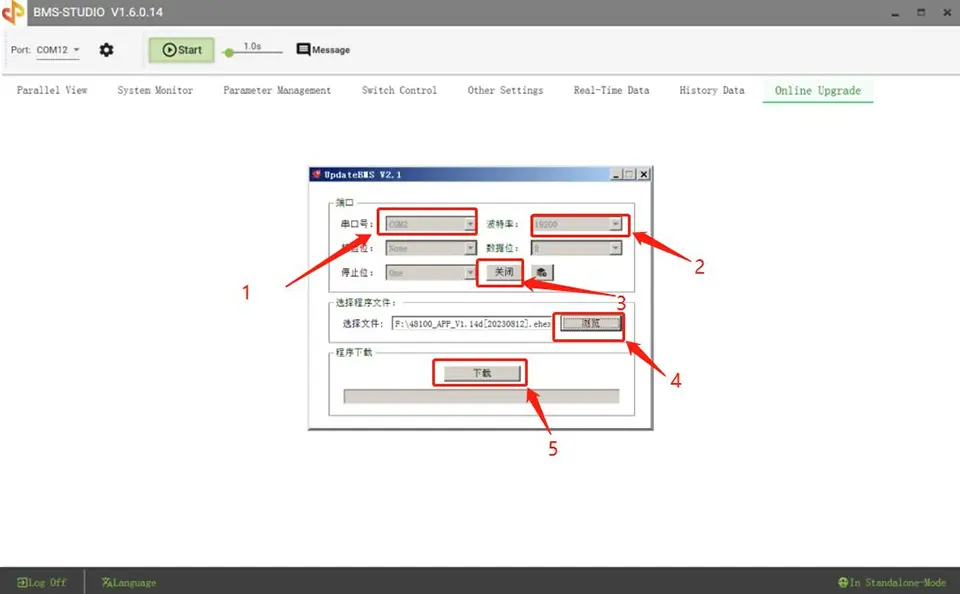
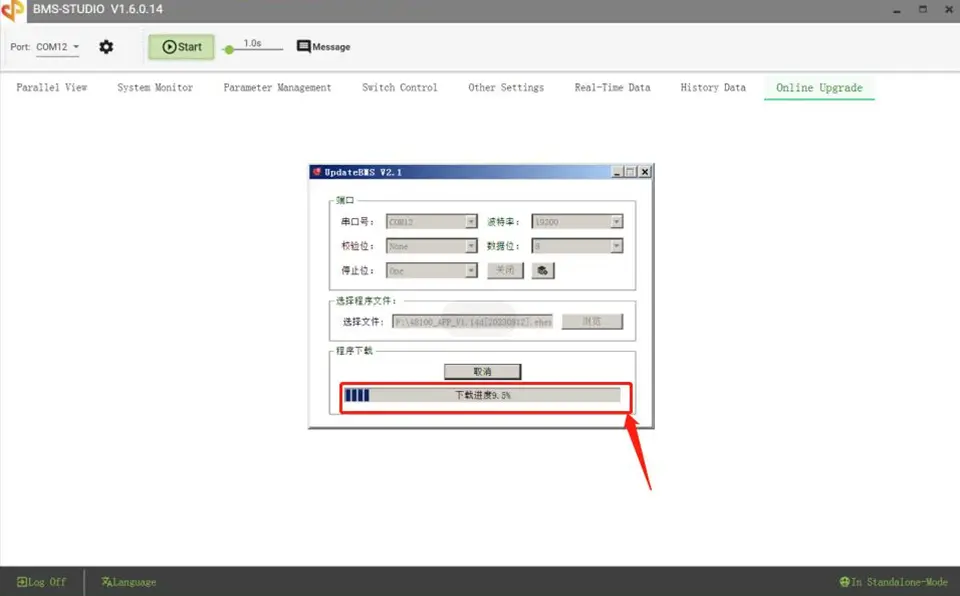
Fifth:
Update succeeded
Close the window
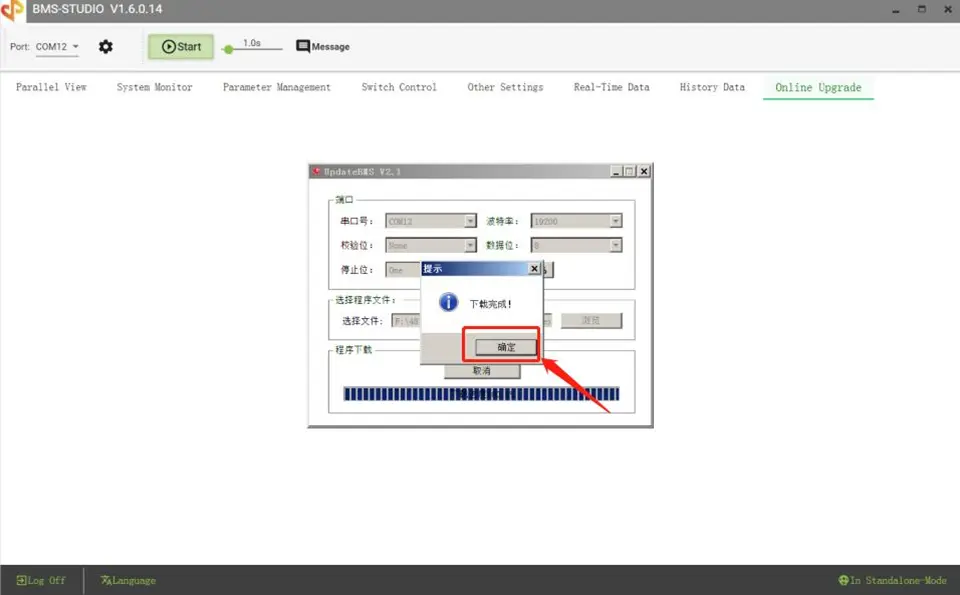
Sixth:
Check whether the upgrade of the firmware version is completed. After the upgrade is completed, the firmware version will
be displayed in the version number of the upgraded program.
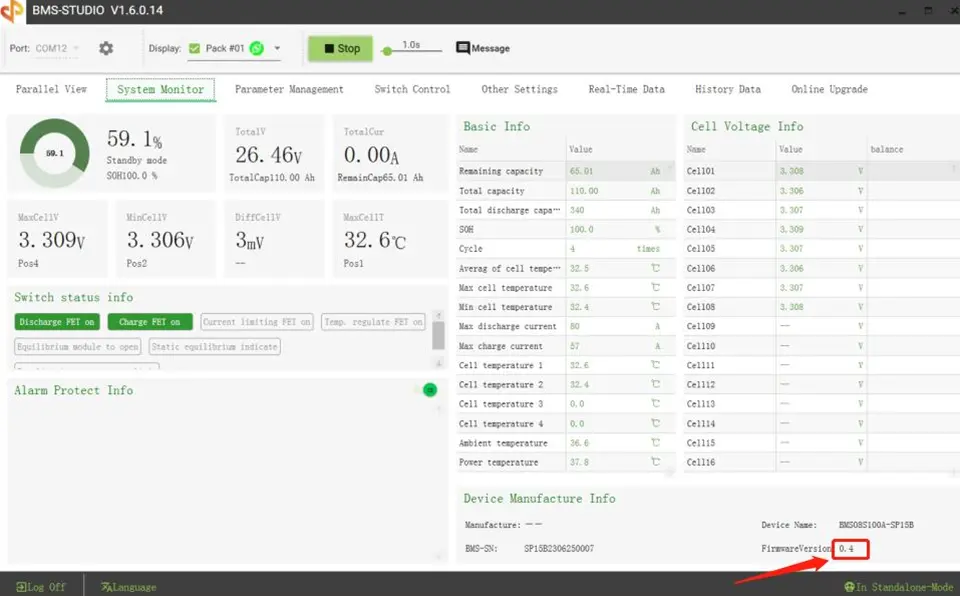
And this is all the process of the BMS firmware upgrade, if there is more you want to know about the energy storage system, please don’t hesitate to contact the Seplos team.
Confirm the new firmware version, cell voltages, pack voltage, current, temperatures, SOC, alarms, communication protocol, inverter connection, and charging and discharging limits.
What should I do if the firmware upgrade fails?
Do not repeatedly power-cycle or continue operating the battery. Check the RS485 connection, COM port, cable, software version, firmware compatibility, and power status before trying again or contacting technical support.
FAQs About Seplos BMS Firmware Updates
A Seplos BMS firmware update installs a newer firmware version on compatible BMS hardware to improve functions, communication, compatibility, monitoring, or system stability.
It may apply to compatible Seplos BMS 3.0 or V3 hardware, but users should confirm the exact BMS model, hardware revision, firmware version, and upgrade file before starting.
The upgrade normally requires a compatible computer, RS485 converter or communication cable, Seplos battery-monitoring software, the correct firmware file, and access to the appropriate COM port.
No. The firmware must match the BMS model and hardware revision. Installing an incompatible file may cause communication failure, abnormal readings, or prevent the BMS from operating correctly.